
Custom C/C++ Applications for ADALM-PLUTO SDR
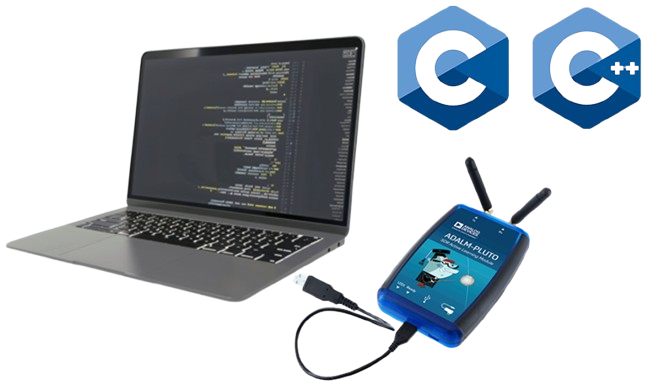
Generally, a host computer is connected to a ADALM-Pluto SDR to stream incoming and outgoing data through standard frameworks such as MATLAB or GNU Radio. However, since Pluto SDR has a Linux based operating system as part of the provided firmware, custom C or C++ applications can also be written and cross-compiled on the host computer which can then be executed on the Pluto SDR locally [1]. A complete guide with the prerequisites, configuration steps and a working example is provided below.
Prerequisites:
Host computer: Windows (x86) or Linux (x86 or ARM) or Raspberry Pi computer.
Cross-compilation tools: Since, we are going to build the application on the host computer, we have to cross-compile the application to generate the executable which can run on the single-core ARM® Cortex™-A9 MPCore™ (666.66 MHz) of the Pluto SDR. The cross-compilation tools are available at: Linaro toolchain [https://releases.linaro.org/components/toolchain/binaries/].
System Root [https://github.com/analogdevicesinc/plutosdr-fw/releases]: For statically linking libraries with the custom application.
Pluto SDR: An ADALM-Pluto SDR with a USB cable.
NOTE: Prerequisites 2 and 3 should be downloaded based on the version of the firmware on the Pluto SDR. The firmware version of a Pluto SDR can be easily checked with the following steps:
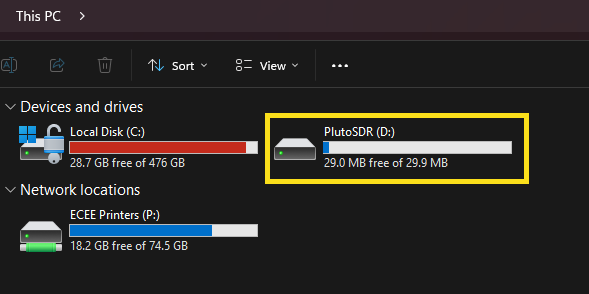
Connect the Pluto SDR to a host computer and check the device drive for the Pluto SDR.
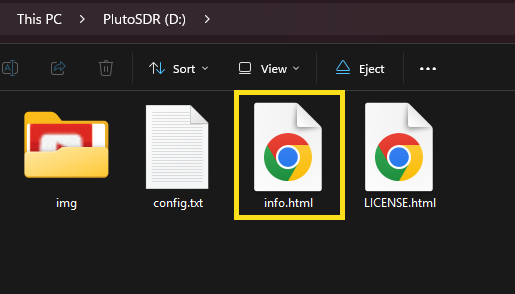
Find the "info.html" file in the Pluto SDR device drive and open the file.
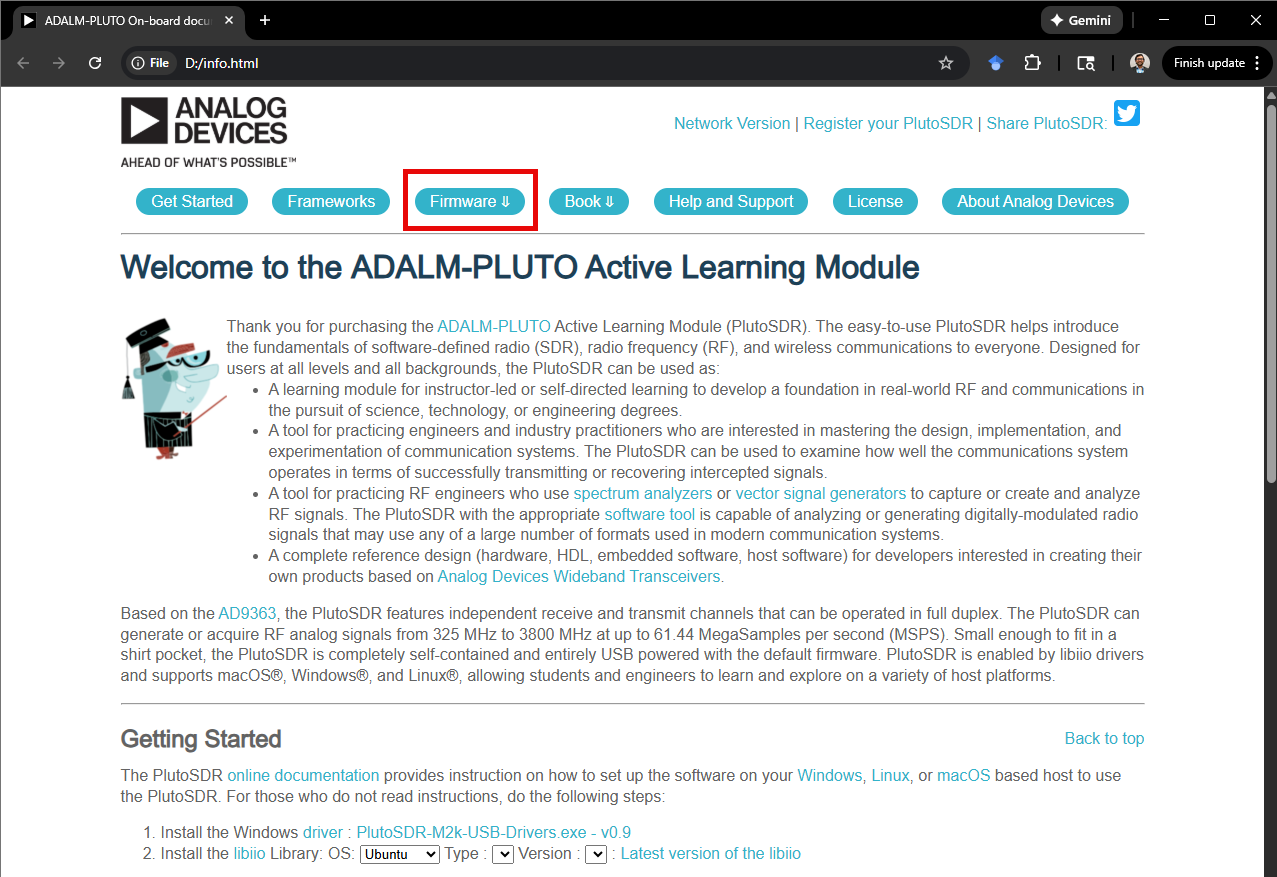
Note the firmware version in the "Firmware" section of the webpage.
Check the versions of prerequisites 2 and 3 in the list of compatible tools.
Configuration Steps:
To show the configuration steps specifically, I am using a Windows (x86-64) host computer with WSL (Windows Subsystem for Linux) enabled and hosting a Windows-native virtual Ubuntu 24.04.1 LTS operating system. Also, the firmware version of my Pluto SDR is the latest v0.39 (as of 12/15/2025). The following screenshots show the step-by-step process of checking the firmware version and the corresponding versions of the other compatible tools required for building, compiling and executing a custom C or C++ application locally on the Pluto SDR.
Step 1: Connect the Pluto SDR to a host computer and check the device drive for the Pluto SDR.
Step 2: Find the "info.html" file in the Pluto SDR device drive and open the file.
Step 3: Note the firmware version in the "Firmware" section of the webpage.
Step 4: Check the versions of prerequisites 2 and 3 in the list of compatible tools.
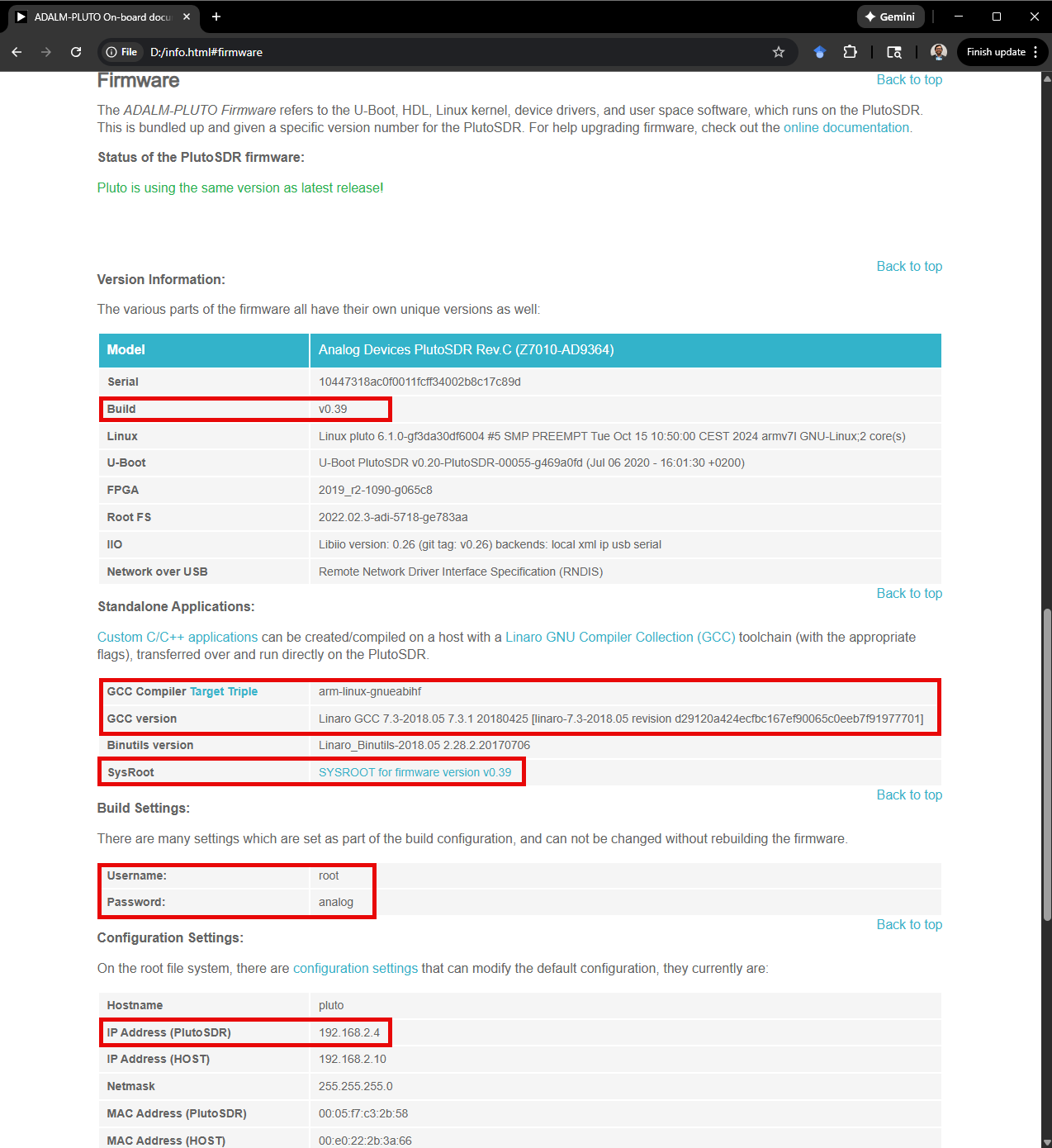
Step 5: Download the compatible version of the Linaro toolchain and the System Root. In my case (firmware version 0.39 which is the latest as of 12/15/2025), the compatible version of the Linaro toolchain was downloaded from "https://releases.linaro.org/components/toolchain/binaries/7.3-2018.05/arm-linux-gnueabihf/gcc-linaro-7.3.1-2018.05-x86_64_arm-linux-gnueabihf.tar.xz" and the compatible version of the System Root was downloaded from "https://github.com/analogdevicesinc/plutosdr-fw/releases/sysroot-v0.39.tar.gz". The compressed files were directly downloaded into a directory in my Windows C drive. Please note the path of the downloaded files as we will need this later for unpacking the compressed files in the virtual Ubuntu OS.
NOTE: Firmware of the Pluto SDR can be updated by downloading the desired firmware version [2].
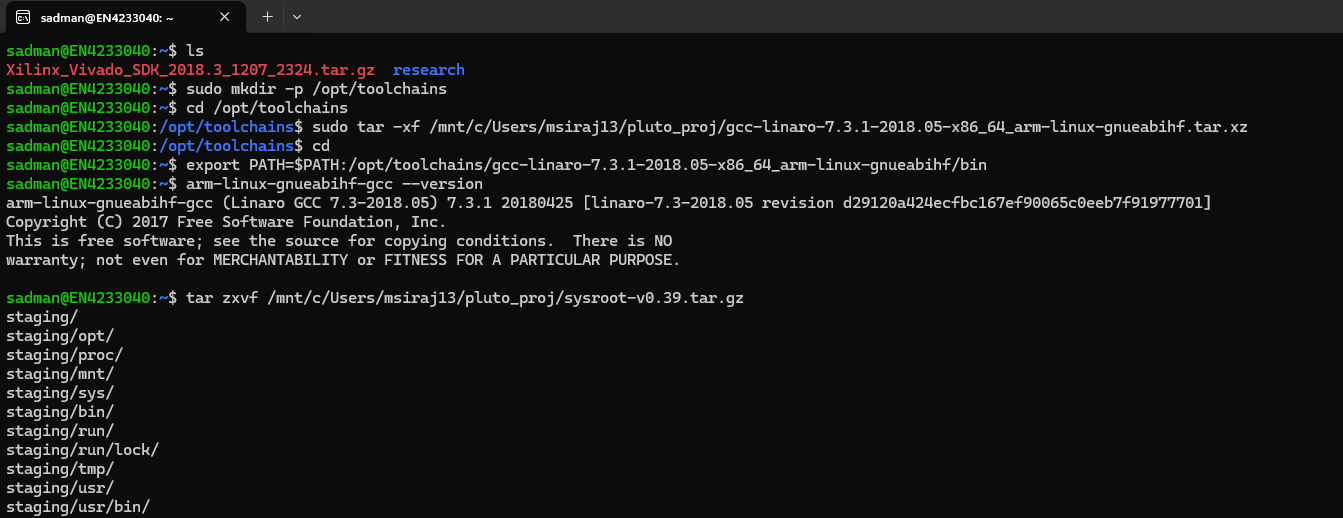
So, up to this point, we have downloaded all the necessary tools and we have set up our host computer to start building a custom application. Now, the following configuration steps were performed in the virtual Ubuntu OS. Also, please refer to the following screenshots and the specified commands to complete the configuration steps.
Step 1: Unpack the downloaded compressed files in the base location or create a new directory. I am using the base location to unpack the compressed files.
              $ sudo mkdir -p /opt/toolchains
              $ cd /opt/toolchains
              $ sudo tar -xf "path_to_the_directory"/gcc-linaro-7.3.1-2018.05-x86_64_arm-linux-gnueabihf.tar.xz
              $ cd
              $ export PATH=$PATH:/opt/toolchains/gcc-linaro-7.3.1-2018.05-x86_64_arm-linux-gnueabihf/bin
              $ arm-linux-gnueabihf-gcc --version
              $ tar zxvf "path_to_the_directory"/sysroot-v0.39.tar.gz
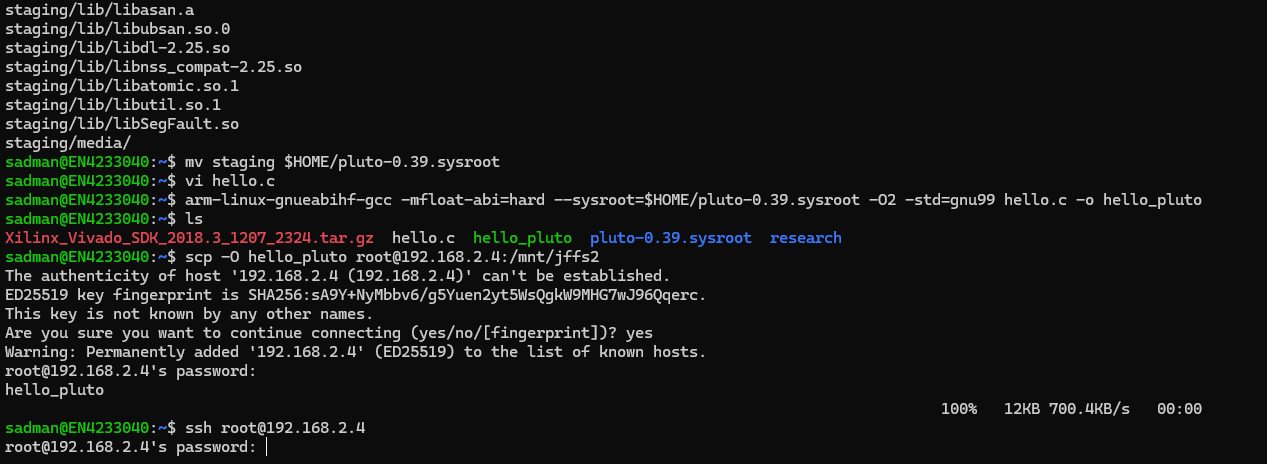
              $ mv staging $HOME/pluto-0.39.sysroot
Step 2: Build a custom application. I am using a simple C program "hello.c" as an example here with the following code:
              #include <stdio.h>

              int main(void) {
                  printf("Hello from Pluto SDR!\n");
                  return 0;
              }
Step 3: Cross-compile the C program "hello.c" and generate the executable "hello_pluto".
$ arm-linux-gnueabihf-gcc -mfloat-abi=hard --sysroot=$HOME/pluto-0.39.sysroot -O2 -std=gnu99 hello.c -o hello_pluto
Step 4: Copy the file over to the Pluto SDR [username: root, password: analog].
$ scp hello_pluto root@"ip_address_as_specified_in_config.txt":"path_to_the_executable_directory"
$ scp -O hello_pluto root@"ip_address_as_specified_in_config.txt":"path_to_the_executable_directory"
I have chosen to copy the files over to the directory "/mnt/jffs2" so that executable exists even if the Pluto SDR is rebooted or power-cycled. If no "path_to_the_executable_directory" is specified, the executable will be copied over to the default base directory of the Pluto SDR OS in which case the executable will not be persistent over subsequent reboots.
Step 5: Connect to the Pluto SDR remotely and run the executable on the Pluto SDR.
              $ ssh root@"ip_address_as_specified_in_config.txt"
              $ cd "path_to_the_executable_directory"
              $ ./hello_pluto
You should see the Pluto SDR remote connection terminal showing the message "Hello from Pluto SDR!".
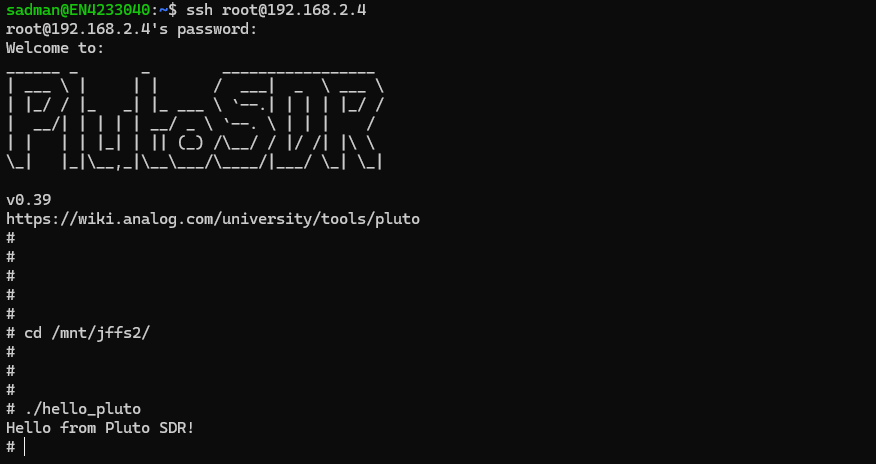
NOTE: The IP address of a Pluto SDR can be checked in the same way as we have checked the firmware version.
References:
[1] https://wiki.analog.com/university/tools/pluto/devs/embedded_code
[2] https://wiki.analog.com/university/tools/pluto/users/firmware
Please feel free to reach out to me at msiraj13@asu.edu for any questions or queries regarding this project.